Using the Chilkat ActiveX in Excel VBA
call Chilkat from macros and worksheet functions in Excel (and Access, Word, Outlook, and any other Office VBA host)
Windows · Excel 32-bit or 64-bit · Chilkat ActiveX v11
The Chilkat ActiveX is a COM library: your VBA code creates Chilkat objects such as ChilkatHttp,
ChilkatJsonObject, or ChilkatCrypt2 and calls their methods, the same way it uses Excel's own
objects. That gives an Excel workbook direct access to HTTP/REST, email, FTP/SFTP, Zip, PDF, encryption, digital signatures,
JSON, XML, and the rest of the Chilkat API. Chilkat objects have no user interface; you don't place them on a worksheet
or form.
The 60-second version
- Check whether Excel is 32-bit or 64-bit ().
- Run the matching Chilkat ActiveX MSI installer from the table below. The per-user installer doesn't need administrator rights.
- In Excel press Alt+F11, choose , paste the first macro, and press F5.
- Save the workbook as an Excel Macro-Enabled Workbook (.xlsm).
On this page: Bitness Install Early vs. late binding First macro Fill a worksheet Worksheet functions VBA tips Sharing workbooks Troubleshooting
Setup
Find out whether Excel is 32-bit or 64-bit
The Chilkat ActiveX DLL must have the same bitness as Excel, not as Windows. 32-bit Excel on 64-bit Windows is common: Microsoft 365 and Office 2019 and later install 64-bit Office by default unless 32-bit is chosen, but older versions such as Office 2016 installed 32-bit by default, so many existing installations are 32-bit.
In Excel, choose . The first line of the dialog ends with 32-bit or 64-bit. Every Office application on a computer has the same bitness, so the answer also applies to Access, Word, and Outlook.
Install the Chilkat ActiveX
The MSI installers copy the DLL and register it, which is all Excel needs. Pick the one matching Excel's bitness:
| Installer | Use it when |
|---|---|
| Per-user | Only the current Windows user needs Chilkat. Installs under your user profile and normally needs no administrator rights, which suits most Excel users. |
| Per-machine | Every user of the computer needs Chilkat (for example, a shared or Terminal Server
machine). Installs under Program Files and requires administrator rights. |
If you prefer not to use an installer, the ActiveX download page also has ZIP
downloads with a register.bat script that registers the DLL with regsvr32. Keep the DLL on a
local drive, not a network share. The downloads are the full version and are
fully functional for a 30-day evaluation.
Open the VBA editor and add a module
Press Alt+F11 to open the Visual Basic for Applications editor, then choose . Put your Chilkat code in this standard module. (Worksheet functions must be in a standard module; code in a sheet or ThisWorkbook module can't be called from a cell.)
When you save, choose and the Excel Macro-Enabled Workbook
(*.xlsm) type. A regular .xlsx workbook can't contain macros, and Excel removes them when it saves.
Macros must be allowed to run. Excel's default setting, Disable VBA macros with notification, shows a yellow Enable Content bar when you open the workbook; click it. If Excel shows a red Security Risk bar instead, Windows has blocked the file's macros because it came from the Internet; see Troubleshooting.
You normally don't need to change the Trust Center's ActiveX Settings. Those settings are for ActiveX controls embedded in Office files, and Chilkat objects are created by VBA code. Excel's macro security settings still apply.
Choose early or late binding
VBA can use a COM library in two ways. Both call exactly the same Chilkat code at run time; they differ in how the objects are declared and created.
Early binding Best while developing
Dim http As New ChilkatHttp
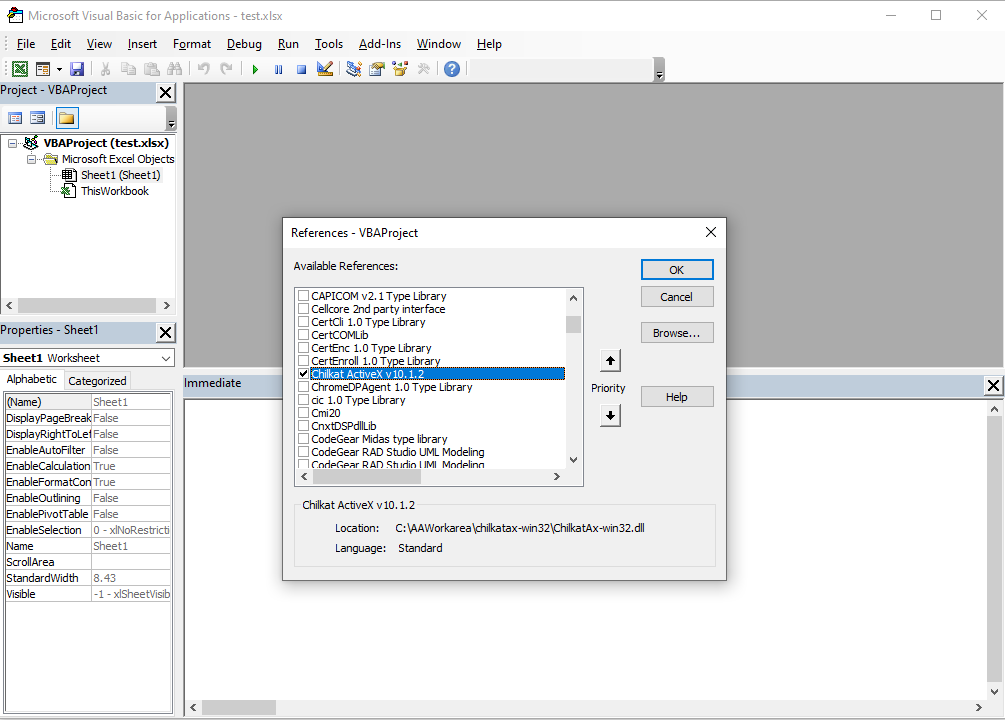
- Add a reference once: , check Chilkat ActiveX v11.x.x.
- IntelliSense lists every method and property as you type, and the F2 Object Browser shows the whole API.
- Typos are caught when the code compiles.
- Every computer that opens the workbook must have a Chilkat ActiveX the reference can find.
Late binding Best for sharing
Set http = CreateObject("Chilkat.Http")
- No reference needed; variables are declared
As Object. - No IntelliSense, and typos show up only when the line runs.
- The workbook opens and compiles on any computer; the object is only looked up when the code runs.
- The ProgID is
Chilkat.+ class name, e.g.Chilkat.JsonObject,Chilkat.Crypt2.
A common approach is to develop with early binding, then switch to late binding before distributing the workbook. Only the declarations change; the rest of the code stays the same.
To add the reference for early binding, choose in the VBA editor, scroll to Chilkat ActiveX, check it, and click OK. The entry's name includes the Chilkat version you installed.
Examples
Your first macro: unlock Chilkat and fetch a URL
Chilkat must be unlocked once per Excel session with UnlockBundle. During the 30-day trial any string
works; after purchase, use your license code. The helper function below unlocks once and remembers that it did, so every
macro can simply call it first. Paste both into your module:
' Unlocks Chilkat once per Excel session. Returns True when Chilkat is ready.
Public Function ChilkatReady() As Boolean
    Static unlocked As Boolean
    If Not unlocked Then
        Dim glob As New ChilkatGlobal
        unlocked = (glob.UnlockBundle("Anything for 30-day trial") = 1)
        If Not unlocked Then Debug.Print glob.LastErrorText
    End If
    ChilkatReady = unlocked
End Function

Sub ChilkatHelloWorld()
    If Not ChilkatReady() Then
        MsgBox "Chilkat could not be unlocked. Press Ctrl+G in the VBA editor to see why."
        Exit Sub
    End If

    Dim http As New ChilkatHttp
    Dim s As String
    s = http.QuickGetStr("https://www.chilkatsoft.com/helloworld.txt")
    If http.LastMethodSuccess <> 1 Then
        MsgBox http.LastErrorText
        Exit Sub
    End If

    MsgBox s
End Sub
Click inside ChilkatHelloWorld and press F5. A message box shows Hello World!.
In Excel you can also run it from (Alt+F8) or
assign it to a button.
The same macro with late binding (no reference needed):
Sub ChilkatHelloWorld_Late()
    Dim glob As Object, http As Object, s As String

    Set glob = CreateObject("Chilkat.Global")
    If glob.UnlockBundle("Anything for 30-day trial") <> 1 Then
        MsgBox glob.LastErrorText
        Exit Sub
    End If

    Set http = CreateObject("Chilkat.Http")
    s = http.QuickGetStr("https://www.chilkatsoft.com/helloworld.txt")
    If http.LastMethodSuccess <> 1 Then
        MsgBox http.LastErrorText
        Exit Sub
    End If

    MsgBox s
End Sub
Fill a worksheet from a JSON web response
This macro downloads a small JSON document, parses it with ChilkatJsonObject, and writes each member
into a row of the active sheet. The same pattern works for any REST API: call it with ChilkatHttp or
ChilkatRest, then read the fields you need with StringOf, IntOf, and
SizeOfArray.
Sub LoadJsonIntoSheet()
    If Not ChilkatReady() Then Exit Sub

    ' {"apple":"red", "lime":"green", "banana":"yellow", ...}
    Dim http As New ChilkatHttp
    Dim jsonText As String
    jsonText = http.QuickGetStr("https://www.chilkatsoft.com/exampledata/sample.json")
    If http.LastMethodSuccess <> 1 Then
        MsgBox http.LastErrorText
        Exit Sub
    End If

    Dim json As New ChilkatJsonObject
    If json.Load(jsonText) <> 1 Then
        MsgBox json.LastErrorText
        Exit Sub
    End If

    Dim ws As Worksheet
    Set ws = ActiveSheet
    ws.Range("A1:B1").Value = Array("Fruit", "Color")
    ws.Range("A1:B1").Font.Bold = True

    Dim i As Long
    For i = 0 To json.Size - 1
        ws.Cells(i + 2, 1).Value = json.NameAt(i)
        ws.Cells(i + 2, 2).Value = json.StringAt(i)
    Next i

    ws.Columns("A:B").AutoFit
End Sub
Use Chilkat in a worksheet formula
A Public Function in a standard module becomes a worksheet function. This one returns the SHA-256 hash
of a cell's text, so you can type =SHA256HEX(A2) in a cell and fill it down a column:
' Worksheet usage:  =SHA256HEX(A2)
Public Function SHA256HEX(ByVal text As String) As Variant
    If Not ChilkatReady() Then
        SHA256HEX = CVErr(xlErrNA)
        Exit Function
    End If

    Dim crypt As New ChilkatCrypt2
    crypt.HashAlgorithm = "sha256"
    crypt.EncodingMode = "hex"
    crypt.Charset = "utf-8"
    SHA256HEX = crypt.HashStringENC(text)
End Function
Keep worksheet functions fast. Excel can recalculate a formula many times, so functions used in cells should do quick, local work (hashing, encoding, parsing, formatting). Put network calls such as HTTP requests, email, or SFTP in macros that the user runs on purpose, and write the results into cells.
Things to know when calling Chilkat from VBA
Chilkat returns 1 or 0, not VBA's True/False. Chilkat ActiveX methods that report success, and properties
such as LastMethodSuccess, return a Long: 1 for success and 0 for
failure. VBA's True is -1, so compare with 1:
- Correct:
If success <> 1 Then… orIf success = 0 Then… - Wrong:
If success = True Thenis never true, because 1 is not -1. - Also wrong:
If Not success Thentreats success as a failure too. On aLong,Notis a bitwise complement:Not 0is-1andNot 1is-2. Both are nonzero, so theIfis true either way.
| Topic | What to do |
|---|---|
| Errors | Chilkat doesn't raise VBA errors for ordinary failures. Check the return value (or
LastMethodSuccess for methods that return a string or object) and read LastErrorText, which
explains exactly what went wrong. Debug.Print obj.LastErrorText writes it to the Immediate window
(Ctrl+G). |
| Unlocking | Call UnlockBundle once per Excel session, as ChilkatReady does above.
The unlock lasts until Excel closes; calling it again is harmless. |
| 32-bit and 64-bit code | Chilkat code needs no Declare statements, so there is nothing to mark
PtrSafe. The same VBA code runs in 32-bit and 64-bit Excel; only the installed Chilkat DLL differs. |
| Object lifetime | Objects are released automatically when the variable goes out of scope. Use
Set obj = Nothing to release one earlier, for example a connection you are finished with inside a long
macro. |
| Long operations | Excel is unresponsive while a Chilkat call runs, as with any VBA code. Set timeouts such as
ConnectTimeout and ReadTimeout where a class has them, and use Application.StatusBar
to tell the user what the macro is doing. |
| Chilkat v9.5 code | v11 ProgIDs are Chilkat.Http, Chilkat.Global, and so on. Older
v9.5 code uses Chilkat_9_5_0.Http. Both versions can be installed side by side; see
Chilkat ActiveX v11 and v9.5 on the same computer. |
Sharing a workbook with other people
The Chilkat code travels inside the .xlsm workbook, but the Chilkat ActiveX DLL does not. On each computer
where the workbook runs:
- Install the Chilkat ActiveX with the same bitness as that computer's Excel. If your users have a mix of 32-bit and 64-bit Office, each gets the matching installer.
- Prefer late binding in shared workbooks. With early binding, a computer where the reference can't be resolved shows Can't find project or library for all of the workbook's code, not just the Chilkat parts.
- Workbooks received by email or downloaded from the Internet have their macros blocked by Windows until the file is unblocked (see Troubleshooting).
Troubleshooting
| Message | Cause and fix |
|---|---|
| Run-time error '429': ActiveX component can't create object | The Chilkat ActiveX isn't registered for this Excel. Usually its bitness doesn't match Excel's (check
), or it isn't installed on this computer. Install the
matching MSI. With late binding, also check the ProgID spelling (Chilkat.Http). |
| Compile error: User-defined type not defined | Early binding without the reference. Check Chilkat ActiveX in , or switch those declarations to late binding. |
| Compile error: Can't find project or library | A reference is marked MISSING: in , typically after the workbook moved to a computer without the Chilkat ActiveX or with a different installation. Install Chilkat there, then uncheck the missing entry and check the current Chilkat ActiveX. Late binding avoids this entirely. |
| Run-time error '438': Object doesn't support this property or method | The method or property name is misspelled, or the installed Chilkat version is older than the one the code was written for. Check the name in the reference documentation and install the current version. |
| SECURITY RISK: Microsoft has blocked macros from running because the source of this file is untrusted. | Shown in a red bar instead of Enable Content. Windows marked the workbook as downloaded from the Internet. Close it, right-click the file in File Explorer, choose Properties, check Unblock, and click OK. Alternatively, keep workbooks in a folder listed under the Trust Center's Trusted Locations. |
| The macros in this project are disabled | Macros are turned off. Click Enable Content when the workbook opens, or check
.
Also make sure the workbook is saved as .xlsm. |
| #NAME? in a cell that uses a Chilkat function | Excel can't find the function. It must be a Public Function in a standard module (not a sheet module),
the workbook must be macro-enabled, and macros must be enabled. |
| A Chilkat method returns 0 or an empty string | The operation itself failed (a network error, a bad password, an invalid file path, and so on). Show
LastErrorText; it names the cause. |
Next Steps
- 📖 Chilkat ActiveX Reference Documentation — every class, method, and property
- 💻 Chilkat VB6 examples — VB6 and VBA are the same language, so these examples run in Excel with little or no change
- 📦 Chilkat ActiveX downloads (MSI installers and ZIP files)
- ✉ Contact Chilkat support
Excel, Access, Word, Outlook, Office, and Visual Basic are trademarks of the Microsoft group of companies.